
Instructions for adding a peripheral to the FuelMor Driver App v2 (FDA v2).
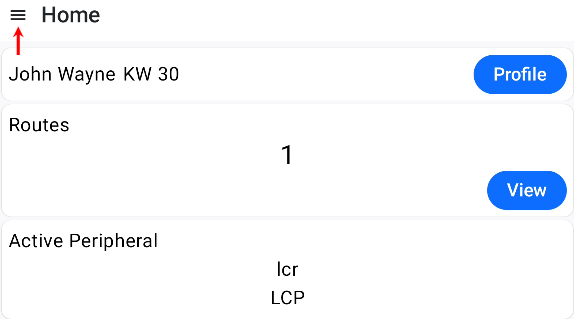
1. Login to FDA v2 and click on the hamburger.
 ----------------------------------------------------------------------
2. Click on Peripherals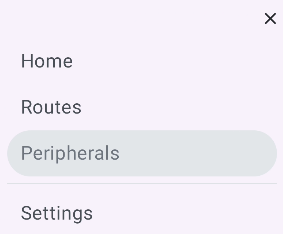 ---------------------------------------------------------------------
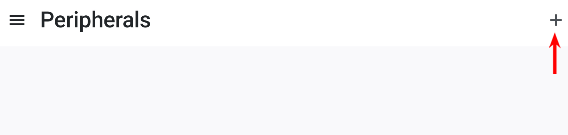
3. Click on plus sign
---------------------------------------------------------------------
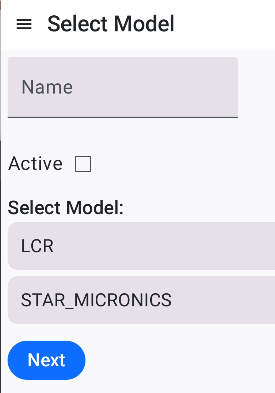
4. Enter a name of your choice, check Active box, select model ( select LCR for bobtail using LCR register, else select Star Micronics), click on Next
---------------------------------------------------------------------
If Star Micronics was selected, the peripheral has been added for Star Micronics use.
If LCR was selected, continue to step 5.
5. Scanning for devices. Click on bluetooth device ( normally SD1000....).

---------------------------------------------------------------------
6. Enter Node Address if known. Or if in bobtail with bobtail running and Bluetooth adapter turned on, click on Autodetect. After node address appears, click on Next
---------------------------------------------------------------------
7. Click on Next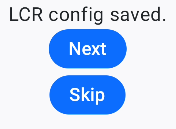
Peripheral has been added for LCR.
Click here for other topics covering FDA v2